Matter 1.5 Camera Streaming
Matter 1.5 cameras combine a home-device control model with real-time video transport. Matter handles device identity, pairing, and control messages, while the video path typically relies on WebRTC-style media streaming between the camera and a viewing client. Benchmarks matter because video quality depends on both the camera’s media pipeline and the network path, not just the device’s “support” for a standard.
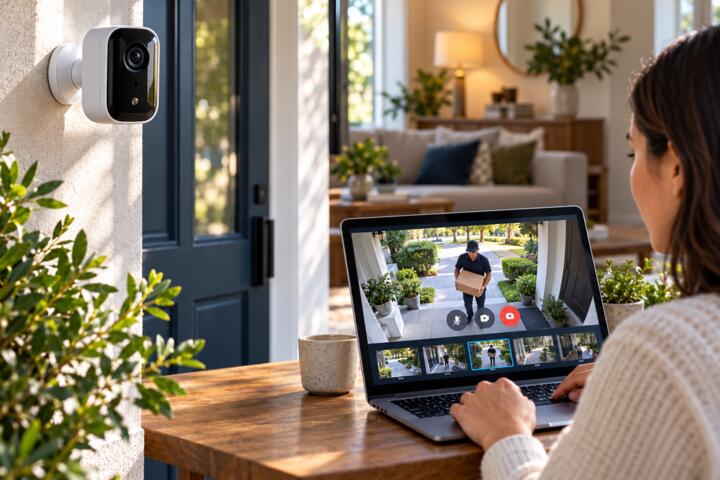
In practice, a viewer app receives a WebRTC session, then decodes video frames while audio and control events ride alongside. When people report “it lags” or “it freezes,” the cause can be jitter buffering, codec negotiation, NAT traversal behavior, or packet loss on Wi‑Fi. A benchmark that only measures “time to connect” misses the longer story of sustained playback under changing bandwidth.
For readers comparing devices, the most useful metrics usually include end-to-end latency, startup time, sustained bitrate stability, and recovery time after a network hiccup. A small aside from lab-style testing: on a typical Wi‑Fi 6 router, a 1–2% packet loss rate can look fine for audio but causes visible macroblocking in low-light video. That same loss can also trigger WebRTC retransmissions that raise latency without improving clarity.
Common Benchmark Pitfalls
Many benchmark claims fail because they measure only one stage of the streaming lifecycle. Startup time might look great on a fast LAN, yet the stream can degrade after 30–90 seconds when the camera adapts bitrate or when the client’s decoder hits thermal or CPU limits. Another frequent issue is mixing “local network” tests with “remote access” tests, which changes NAT traversal and often adds relay hops.
People also over-attribute performance to the Matter layer. Matter messaging latency does not directly determine video frame delivery, since the video media path follows its own transport and codec pipeline. What Matter does influence is how reliably the camera is discovered, authenticated, and controlled, which affects whether the stream can be started consistently after sleep or power events.
Benchmarks also get distorted by test setup choices. If the camera and viewer run on the same access point with identical channel conditions, results won’t match a home where the camera sits behind a wall or on a different floor. If the viewer uses hardware decoding, results differ from software decoding, and the difference can show up as dropped frames rather than obvious buffering.
Finally, “WebRTC support” is not a single switch. Codec support (for example, H.264 vs. H.265/HEVC), packetization behavior, and congestion control settings vary by vendor and firmware. Even within the same device model, firmware updates can change encoder settings; I’ve seen release notes that mention “improved low-light streaming,” which often correlates with different bitrate targets and frame pacing.
How To Test Streaming Quality
Measure Latency And Startup
Record two timings: time-to-first-frame and end-to-end latency during steady playback. Time-to-first-frame is the interval from “start stream” to the first decoded frame on the client. End-to-end latency is harder without specialized tools, but you can approximate it by comparing a visible event timestamp with a synchronized audio cue or by using WebRTC stats that expose round-trip time and jitter.
Use the browser’s WebRTC internals or a WebRTC stats viewer in your test client. In Chrome, the page-level WebRTC stats can be inspected via the built-in diagnostics; the exact menu path varies by version, and I’ve used it on Chrome 126 with consistent field names for jitter and packet counts. For mobile apps, you may need vendor-provided logs or a companion diagnostic mode, which is why test repeatability matters.
Track latency under at least three network conditions: strong Wi‑Fi signal, moderate signal, and a deliberate interference scenario like moving the camera to a farther room. If you only test “best case,” you’ll miss the recovery behavior that determines whether a stream stays usable during motion events.
Track Bitrate Stability And Loss
Collect sustained bitrate and packet loss statistics over a 5–10 minute window. A stable stream shows bitrate that adapts smoothly rather than oscillating wildly, and it maintains low packet loss without long periods of retransmission. If you see bitrate collapse followed by a slow ramp-up, the stream may feel “fine” at first and then become unreliable.
In WebRTC stats, look for fields related to packets sent/received, jitter, and retransmissions. Packet loss can be masked by retransmission, but retransmission increases latency and can cause the client’s playout buffer to grow. That buffer growth often shows up as delayed motion detection relative to what you see on-screen.
For a realistic outcome target, many consumer-grade setups aim for “usable motion” rather than perfect real-time. In practical terms, a stream that stays under roughly 500–1200 ms of end-to-end latency with minimal stutter during moderate Wi‑Fi degradation tends to feel responsive. Exact numbers vary by codec, resolution, and client hardware, so treat these as heuristics for decision-making, not universal guarantees.
Validate Codec And Decoder Path
Confirm which codec the session negotiates and whether the client uses hardware decoding. WebRTC sessions often start with a negotiation phase; the chosen codec affects CPU load, power draw, and resilience under packet loss. H.264 streams may decode reliably on older devices, while H.265 can reduce bandwidth but may require stronger decoder support.
Check for signs of decoder strain: rising CPU usage, increasing dropped frames, or a growing gap between audio and video. A mild frustration point: many apps hide these details, so you may need to test with a WebRTC-capable browser client or a diagnostic build of the viewer app. If you cannot observe codec and decode behavior, you can still compare devices by repeating the same network test and comparing stability metrics.
Also test after the camera wakes from sleep. Some cameras lower bitrate or change GOP structure during low-power states, which can affect startup time and the first few seconds of playback. A 30-second “warm-up” period can make results look better than they are for a user who starts a stream on demand.
Test NAT Traversal And Remote Access
Run a remote test that forces traffic off the local LAN. NAT traversal behavior can change when the viewer is on cellular or a different home network, and relay usage can add latency. If the device uses a relay path, you may see higher baseline latency but more consistent connectivity.
To keep results comparable, use the same remote network type across devices: for example, a phone on LTE/5G with Wi‑Fi off, or a second home with a similar ISP class. Record whether the session falls back to a relay after a short failure, since that affects both startup time and jitter.
When you interpret remote benchmarks, separate “connectivity success rate” from “media quality.” A device that connects reliably through relays can still deliver lower quality if its congestion control targets are conservative. Conversely, a device that fails more often might still look great when it connects.
Educational Case Examples
Scenario A: Same LAN, Different Stability. Two cameras stream to the same viewer on a Wi‑Fi 6 access point. Camera 1 shows a fast time-to-first-frame, but bitrate oscillates and packet retransmissions spike after motion begins, producing a delayed “catch-up” effect. Camera 2 starts slightly slower, yet maintains steadier bitrate and lower jitter over a 10-minute window. The user experience difference comes from sustained media adaptation, not from Matter pairing or discovery.
Scenario B: Remote Access, Relay Behavior. A viewer tests from a phone on cellular. Camera 1 connects quickly but stutters during sustained motion, with frequent playout buffer growth. Camera 2 connects after a longer negotiation phase, then plays smoothly with higher baseline latency. The benchmark takeaway is that remote WebRTC sessions can trade startup time for steadier throughput, and the “best” choice depends on whether users prioritize instant viewing or consistent motion playback.
Benchmark Checklist And Table
Use this checklist to decide whether a benchmark result can guide a purchase or deployment plan. If a test omits any item, the result may still be useful, but it supports fewer decisions.
| Test Item | What To Record | Why It Matters | Common Failure Mode |
|---|---|---|---|
| Startup | Time-to-first-frame (seconds) | Determines perceived responsiveness | Measured only on LAN warm sessions |
| Latency | Approx. end-to-end delay (ms) | Affects motion timing and “chasing” | No jitter/RTT context |
| Loss/Jitter | Packet loss %, jitter, retransmits | Predicts stutter and recovery | Only average bitrate reported |
| Bitrate Stability | Bitrate over 5–10 minutes | Shows adaptation behavior | Short tests hide oscillation |
| Remote Path | Connect success + relay vs direct | Changes latency and jitter | LAN-only conclusions |
| Codec/Decode | Negotiated codec + dropped frames | Explains CPU/power limits | No visibility into decode path |
- Pick one viewer device model and keep it fixed across camera tests.
- Run a 10-minute steady test at three distances or signal strengths.
- Repeat with motion events to trigger encoder adaptation.
- Run one remote test on cellular or a different home network.
- Record codec negotiation and any decoder strain indicators.
Common Mistakes In Reviews
One mistake is treating a single “best” run as representative. WebRTC sessions vary with Wi‑Fi interference, router load, and background traffic, so a single run can overstate performance. Another mistake is ignoring the viewer’s role: a phone with aggressive power saving can throttle CPU, which changes decode behavior and makes the camera look worse.
Some reviews also conflate video quality with connectivity. A stream can look sharp at the start and then degrade when the bitrate adaptation changes, which shows up as blockiness or stutter rather than a total disconnect. If a benchmark does not report packet loss or jitter, it becomes hard to distinguish codec limits from network issues.
Finally, promotional-style comparisons often omit the test duration. A 30-second clip rarely captures recovery after a brief outage, and it rarely shows whether the stream stabilizes after the first congestion control ramp. If you see only “connected in X seconds,” ask what happens after the first minute, because that is where most user complaints cluster.
FAQ
What Does Matter 1.5 Change For Cameras?
Matter 1.5 primarily affects device onboarding, identity, and control messaging. The video stream quality still depends on the media transport and codec path used by the camera and viewer.
Which WebRTC Metrics Best Predict Stutter?
Packet loss rate, jitter, and retransmission counts usually correlate with stutter and delayed recovery. Bitrate alone can look stable while latency grows due to retransmissions.
How Long Should A Streaming Benchmark Run?
Use at least 5–10 minutes for sustained behavior, then repeat with motion events. Short tests can hide bitrate oscillation and slow ramp-up after network changes.
Why Do Two Devices Perform Differently On Remote Access?
NAT traversal can switch between direct paths and relay paths, which changes latency and jitter. Congestion control targets can also differ, so the same network can produce different adaptation patterns.
Can Wi‑Fi Signal Strength Alone Explain Results?
Signal strength influences packet loss and retransmissions, but router configuration, channel congestion, and client power saving also affect outcomes. Two homes with similar RSSI can still show different jitter and decode stability.
Author's Insight
Matter 1.5 and WebRTC solve different parts of the camera problem: Matter focuses on device control and interoperability, while WebRTC focuses on real-time media transport. Benchmarks that separate startup, latency, loss/jitter, and sustained bitrate are easier to interpret because each metric maps to a specific failure mode. When a test lacks remote-path evaluation, it often misses the relay and NAT traversal effects that dominate outside the home. If you run your own measurements, keep the viewer device constant and record WebRTC stats fields, even if you only use them to compare relative performance.
Key Takeaways
- Measure more than “connect time”: include time-to-first-frame, latency behavior, and 5–10 minute stability.
- Separate Matter control reliability from media streaming performance; video quality follows the WebRTC media path.
- Track packet loss, jitter, and retransmissions to explain stutter and recovery delays.
- Test both LAN and remote access, since NAT traversal can change the streaming path.
- Keep the viewer device and test conditions consistent, or the comparison becomes guesswork.