Home Tablet Dashboard Basics
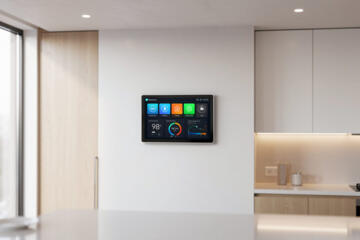
A home tablet dashboard is the first screen you land on after unlocking, waking, or opening an app. It typically combines a small set of high-frequency actions: medication reminders, appointments, symptom logs, device status, and family messages. A good dashboard reduces decision time by keeping the most time-sensitive items visible without forcing you into menus. For example, a “Today” card can show three items max—morning meds, a scheduled appointment, and a quick note—while everything else sits behind a secondary tab.
Design choices affect reliability. If the dashboard uses dense cards, the eye misses the one item that matters at 8:00 a.m. If it uses too many colors, contrast fails for low-vision users. If it hides reminders behind swipes, you get “I meant to do it” behavior. On a 10–12 inch tablet, a layout that looks fine on a phone often becomes cramped, so spacing and font size need a deliberate pass.
Supporting technologies shape what the UI can do. Notification systems depend on the tablet’s OS settings, app permissions, and background activity rules. Reminder accuracy depends on time zone handling, offline behavior, and whether the app schedules local notifications or relies on a server push. If you’ve ever seen reminders drift by an hour after travel, that’s usually a time zone or daylight saving edge case, not a “user mistake.”
Main Problems And Pain Points
People often design dashboards around what they want to see, not what they need to act on. A common failure mode is the “everything widget” screen: ten tiles, each with small text, none with clear priority. When the tablet is used by multiple family members, the dashboard also becomes a shared interface with competing needs, and the UI rarely reflects that.
Another pain point is notification overload. If the dashboard shows badges for every app, the user learns to ignore badges, and the one health reminder gets treated like background noise. Notification grouping and quiet hours exist on most tablet operating systems, but many dashboards ignore them and rely on default settings. That’s where the UI and OS settings clash, and the result feels random.
Privacy and data exposure create a separate set of issues. A dashboard that shows health details on the lock screen can reveal medication names or appointment reasons to anyone who picks up the tablet. Even when the app supports “hide content,” system-level lock screen settings may override it. I’ve seen teams test the app while the tablet is unlocked, then forget to test the lock screen state; the difference is dramatic.
Finally, accessibility gets skipped. Small tap targets, low contrast, and text that doesn’t scale with system settings lead to missed actions. On iPadOS and Android tablets, dynamic type or font scaling can change layout, and a dashboard that doesn’t reflow can hide buttons under other elements. Version 17.x of iPadOS introduced subtle changes in how some apps handle text scaling, and dashboards built without layout testing can break in ways that are hard to notice until a real user tries it.
Solutions And Advice
Prioritize One-Tap Actions
Limit the dashboard to a small set of time-critical actions. A practical rule is to show 3–5 items on the first screen, each with a clear label and a direct action button. For medication tracking, use “Taken” and “Not now” style actions with large tap targets, and keep the medication name short enough to fit on a tablet without wrapping. If you need more detail, open a secondary screen rather than expanding the first screen.
Use a consistent visual hierarchy: one primary color for the next action, neutral tones for secondary info, and a single alert style for overdue items. Avoid using color alone to convey status; add icons or text like “Overdue” so the meaning survives grayscale or color-vision differences. If your dashboard uses cards, keep card heights consistent so the eye doesn’t hunt for the next button.
Design Notifications With Rules
Set notification behavior as part of the dashboard design, not as an afterthought. Use OS features such as notification grouping, scheduled summaries, and quiet hours to prevent health reminders from mixing with chat pings. For medication reminders, prefer local scheduling when available, because it reduces dependence on server push timing. If the app relies on cloud sync, test offline behavior by turning off Wi‑Fi for a few hours and checking whether reminders still fire.
Use “snooze” and “reschedule” actions that match real routines. A snooze that only delays by 5 minutes can create repeated interruptions, while a snooze that jumps by 2 hours may miss the intended dose window. Many apps default to one size; you can often adjust it in settings, and if you cannot, you should treat the app as fixed and design around it.
Protect Health Privacy By Default
Decide what health information should appear on the lock screen. For shared households, hide medication names and appointment reasons by default, and show only generic status like “Reminder due” without details. Test both states: locked and unlocked. I recommend doing a quick check on the tablet’s lock screen after changing app permissions, because system settings can override app-level privacy toggles.
Use per-user profiles or separate accounts when the tablet supports them. If the OS supports multiple user spaces, keep health dashboards in the profile used by the person who needs them. If you must share one profile, avoid widgets that expose personal history on the home screen.
Test Accessibility And Readability
Run a readability pass with real tablet settings. Increase system font size to the highest comfortable level and verify that buttons remain visible and tappable. Check contrast ratios using a contrast checker tool, then verify in bright and dim lighting. For tap targets, aim for generous spacing so a mis-tap doesn’t trigger the wrong action; on tablets, small buttons are a frequent cause of “I tapped the wrong thing” frustration.
Keyboard and screen reader support matter too. Ensure focus order makes sense: the next action button should be reachable without jumping across unrelated cards. If the dashboard uses custom components, confirm that screen readers announce labels and statuses rather than reading raw icons.
Case Examples For Home Setups
Family Medication Dashboard
A household sets up one tablet for two adults and a shared calendar. The dashboard first screen shows “Today” with two medication cards and one appointment card, each with a single action button. Chat notifications are grouped into a daily summary, while medication reminders use immediate alerts with quiet hours from 10:00 p.m. to 7:00 a.m. The lock screen shows only “Medication reminder” without names. After a week, the family notices fewer missed doses because the dashboard never mixes medication status with unrelated app badges.
Caregiver Symptom Logging
A caregiver uses a tablet to log symptoms for an older relative. The dashboard shows a “Log Now” button and a short list of common symptoms with checkboxes. The caregiver records entries in under a minute, then the app syncs when Wi‑Fi returns. The UI avoids long free-text fields on the first screen, because the caregiver often uses the tablet one-handed. The caregiver also tests the tablet in low light and increases font size, which prevents the symptom labels from becoming unreadable.
Comparison Table And Checklist
| Design Choice | Good Fit | Risk If Misused | How To Test |
|---|---|---|---|
| First-screen items | 3–5 actions with clear labels | Overcrowding hides the next step | Unlock and act within 10 seconds |
| Notification rules | Quiet hours + grouped summaries | Badge fatigue reduces response | Simulate a busy day for 1 week |
| Lock screen privacy | Generic text, no health details | Accidental disclosure to others | Check locked state after permission changes |
| Accessibility settings | Text scaling + readable contrast | Buttons become hard to tap | Test at max font size and low brightness |
Step-by-step checklist for a safer dashboard setup:
- Pick the top 3 time-critical tasks and place them on the first screen only.
- Turn on quiet hours and group non-health notifications into summaries.
- Set lock screen previews to hide health content, then verify the result while locked.
- Increase system font size and confirm that every action button remains visible and tappable.
- Test one offline scenario: disable Wi‑Fi for a few hours and check whether reminders still appear.
- Run a one-week observation: count missed actions and note whether the UI or notification timing caused the miss.
Common Mistakes
One frequent mistake is designing for the “happy path” and skipping the “overdue” state. A dashboard should show overdue items with clear text, not just a subtle color shift. If overdue items look like normal items, users learn to ignore them.
Another mistake is mixing personal health data with general family information on the same screen. A calendar card that includes appointment reasons can expose sensitive details to anyone who glances at the tablet. Keep sensitive fields behind a tap, and show only generic labels on the overview.
People also underestimate OS-level permission interactions. Notification permissions, background refresh, and battery optimization can block reminders even when the app UI looks correct. Test after changing any permission prompt, and check the tablet’s notification settings for each app rather than trusting the app’s in-app toggles.
Finally, dashboards often fail when multiple users share the device. If the tablet uses one shared account, the dashboard can show the wrong person’s history. If the tablet supports separate profiles, use them; if it does not, keep sensitive widgets off the home screen and rely on explicit sign-in within the health app.
FAQ
What should appear on the first screen?
Show only the next 3–5 actions that a user must complete soon, such as “meds due,” “appointment today,” and “log symptom.” Everything else should open from those actions to prevent clutter.
How do I stop notification fatigue?
Use quiet hours and notification grouping for non-health apps, then keep health reminders as immediate alerts. Track missed reminders for a week to confirm the balance.
Can I hide health details on the lock screen?
Most tablet OSes support lock screen privacy controls. Set previews to hide content for the health app, then verify the locked state after changing app permissions.
What accessibility checks matter most?
Test maximum font scaling, contrast in dim light, and screen reader focus order. Confirm tap targets remain large enough and that buttons do not overlap when text grows.
Do dashboards work offline?
Some apps can record entries offline and sync later, but reminder delivery depends on how the app schedules notifications. Test by disabling Wi‑Fi for a few hours and checking both reminders and logging.
Author's Insight
Dashboard design for home tablets succeeds when the UI matches the timing and attention limits of real routines. The most common failures come from mismatched priorities: too many tiles, too many badges, or health details exposed on the lock screen. Evidence from usability practice consistently points to small, testable choices—font scaling behavior, tap target size, and notification rules—rather than broad “design principles.” If you treat the dashboard as a system that includes OS settings and permissions, you can predict many issues before they show up in daily use.
Key Takeaways
- Keep the first screen focused on 3–5 time-critical actions with clear labels and one-tap buttons.
- Design notification behavior with quiet hours and grouping, then test for badge fatigue over a week.
- Hide health details on the lock screen and verify locked-state behavior after permission changes.
- Test accessibility using maximum font scaling and low-light contrast so buttons remain usable.
- Validate offline and multi-user scenarios so reminders and logs behave predictably.